> ## Documentation Index
> Fetch the complete documentation index at: https://docs.oleander.dev/llms.txt
> Use this file to discover all available pages before exploring further.

# Quickstart

> Connect an agent to oleander, upload or connect your data, and ask your first question in minutes.

We'll connect your agent, authenticate, and ask your first question.

<Note>
  Need an account? [Sign up at oleander.dev](https://oleander.dev/account).
</Note>

## Step 1: Connect Your Agent

Use the oleander plugin in Claude to query your data, upload files, or schedule daily reports.

<Tabs>
  <Tab title="Claude Cowork">
    <Steps>
      <Step title="Add plugin marketplace">
        Open **Cowork** → **Customize** → **+** → **Add marketplace from GitHub**.

        Paste `https://github.com/OleanderHQ/claude-plugin` (or `OleanderHQ/claude-plugin`), then install the oleander plugin.

        <Frame>
          <video controls className="block dark:hidden w-full rounded-xl" src="https://mintcdn.com/oleander/Ndoc5oxlqQKDkaAS/images/quickstart/claude-coworker-light-add-marketplace.mp4?fit=max&auto=format&n=Ndoc5oxlqQKDkaAS&q=85&s=3e4816b8dbb01e193f9a5afc2b7b9d20" data-path="images/quickstart/claude-coworker-light-add-marketplace.mp4" />

          <video controls className="hidden dark:block w-full rounded-xl" src="https://mintcdn.com/oleander/Ndoc5oxlqQKDkaAS/images/quickstart/claude-coworker-dark-add-marketplace.mp4?fit=max&auto=format&n=Ndoc5oxlqQKDkaAS&q=85&s=1a3bced30d0d0f77eeb19012838e182b" data-path="images/quickstart/claude-coworker-dark-add-marketplace.mp4" />

          <figcaption>Add and install the oleander marketplace in Cowork</figcaption>
        </Frame>
      </Step>

      <Step title="Add connector">
        Open **Cowork** → **Customize** → **Plugins** → **Oleander** → **Connectors** → **Connect**.

        <Frame>
          <video controls className="block dark:hidden w-full rounded-xl" src="https://mintcdn.com/oleander/Ndoc5oxlqQKDkaAS/images/quickstart/claude-coworker-light-add-connector.mp4?fit=max&auto=format&n=Ndoc5oxlqQKDkaAS&q=85&s=1a81be6ac11758449d694ffcc9a7254c" data-path="images/quickstart/claude-coworker-light-add-connector.mp4" />

          <video controls className="hidden dark:block w-full rounded-xl" src="https://mintcdn.com/oleander/Ndoc5oxlqQKDkaAS/images/quickstart/claude-coworker-dark-add-connector.mp4?fit=max&auto=format&n=Ndoc5oxlqQKDkaAS&q=85&s=8316c2e3684d909a21ca0213d403114f" data-path="images/quickstart/claude-coworker-dark-add-connector.mp4" />

          <figcaption>Add oleander connector in Cowork</figcaption>
        </Frame>
      </Step>

      <Step title="Verify the connection">
        Ask your agent for a quick connection check:

        > "Are you connected to oleander?"

        The agent should call `identity_get` and return your organization context.

        <Tip>
          See [Claude Cowork setup](/mcp/claude#claude-cowork) for scheduled tasks and org-wide rollout.
        </Tip>
      </Step>
    </Steps>
  </Tab>

  <Tab title="Claude Code">
    The [oleander Claude Code Plugin](https://github.com/OleanderHQ/claude-plugin) installs the MCP server into Claude Code.

    <Steps>
      <Step title="Add plugin marketplace">
        In Claude Code, add the oleander marketplace and install the plugin:

        ```bash theme={null}
        /plugin marketplace add OleanderHQ/claude-plugin
        /plugin install oleander@oleander
        ```

        You may need to restart your Claude Code session before the MCP server is available.
      </Step>

      <Step title="Authentication">
        Sign in with your oleander account:

        ```bash theme={null}
        claude mcp login oleander
        ```

        Or run `/mcp`, select **oleander**, and choose **Authenticate**. Your browser opens to complete the OAuth flow.
      </Step>

      <Step title="Verify the connection">
        Confirm oleander is connected:

        ```bash theme={null}
        claude mcp list
        ```

        You should see `✓ Connected` for oleander.

        <Tip>
          See [Claude setup](/mcp/claude) for skills and manual MCP configuration.
        </Tip>
      </Step>
    </Steps>
  </Tab>
</Tabs>

Using a different agent? See [Cursor](/mcp/cursor), [Codex](/mcp/codex), and [OpenCode](/mcp/opencode) setup.

## Step 2: Connect Your Data

Connect or upload at least one data source so you can start a conversation about it with your agent:

* **[Upload a file](https://oleander.dev/app/upload)**: Upload a parquet or CSV file to start querying instantly. No setup needed
* **[Connect your warehouse](/platform/connections/bigquery)**: For live access to [BigQuery](/platform/connections/bigquery), [Snowflake](/platform/connections/snowflake), [Postgres](/platform/connections/postgres), and Iceberg catalogs, go to [Settings → Lake](https://oleander.dev/app/settings/lake)

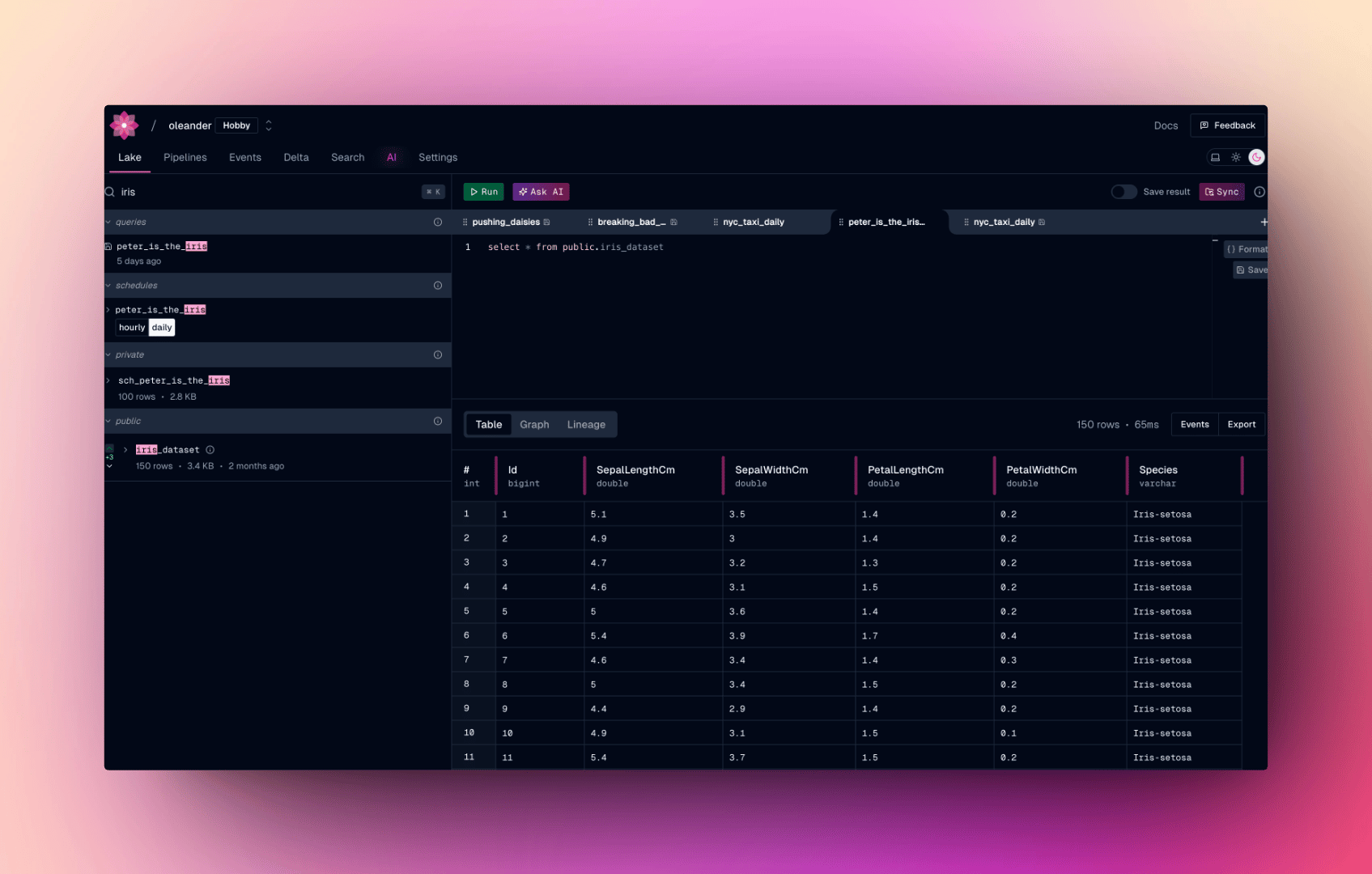
To try it quickly, download the [sample Iris dataset](https://raw.githubusercontent.com/OleanderHQ/assets/main/data/iris_dataset.parquet) and upload it at [oleander.dev/app/upload](https://oleander.dev/app/upload).

## Step 3: Ask Your Question

Ask your agent in plain English. Through oleander's MCP server it can list catalogs, run SQL, upload files, and schedule reports.

* **Analytics:** "What's the average petal length in `default.iris`, broken down by species?"
* **Exploratory:** "Explore the iris dataset. What looks unusual across species?"

Once you're comfortable asking questions, try going further:

* Schedule a daily report with a [Cowork scheduled task](https://support.claude.com/en/articles/13854387-schedule-recurring-tasks-in-claude-cowork) every morning at 8 a.m. (`cron: 0 8 * * *`).
* Ask for weekly context on what's new or changed in your data, like tables renamed, updated, or newly uploaded.
* Run a weekly org wrap on cost trajectory and whether you're on track for the month's KPIs.

<Tip>
  Ask in plain English. oleander handles the query plan and execution behind the scenes so your agent can focus on the answer.
</Tip>

## Take It Further

<CardGroup cols={2}>
  <Card title="Connect Your Warehouse" icon="link" href="/platform/connections/bigquery">
    Query external and lake data through one SQL layer
  </Card>

  <Card title="Query Your Lake" icon="database" href="/platform/lake/query">
    Upload data and run SQL
  </Card>

  <Card title="Setup Your Agent" icon="plug" href="/mcp/introduction">
    Connect from your editor, terminal, or automation
  </Card>

  <Card title="Observability" icon="chart-line" href="/observability/overview">
    Lineage, traces, and run history in one place
  </Card>
</CardGroup>