> ## Documentation Index
> Fetch the complete documentation index at: https://docs.oleander.dev/llms.txt
> Use this file to discover all available pages before exploring further.
# Query
> Run SQL queries, upload data, and collaborate on tables with built-in observability.
 ## Overview
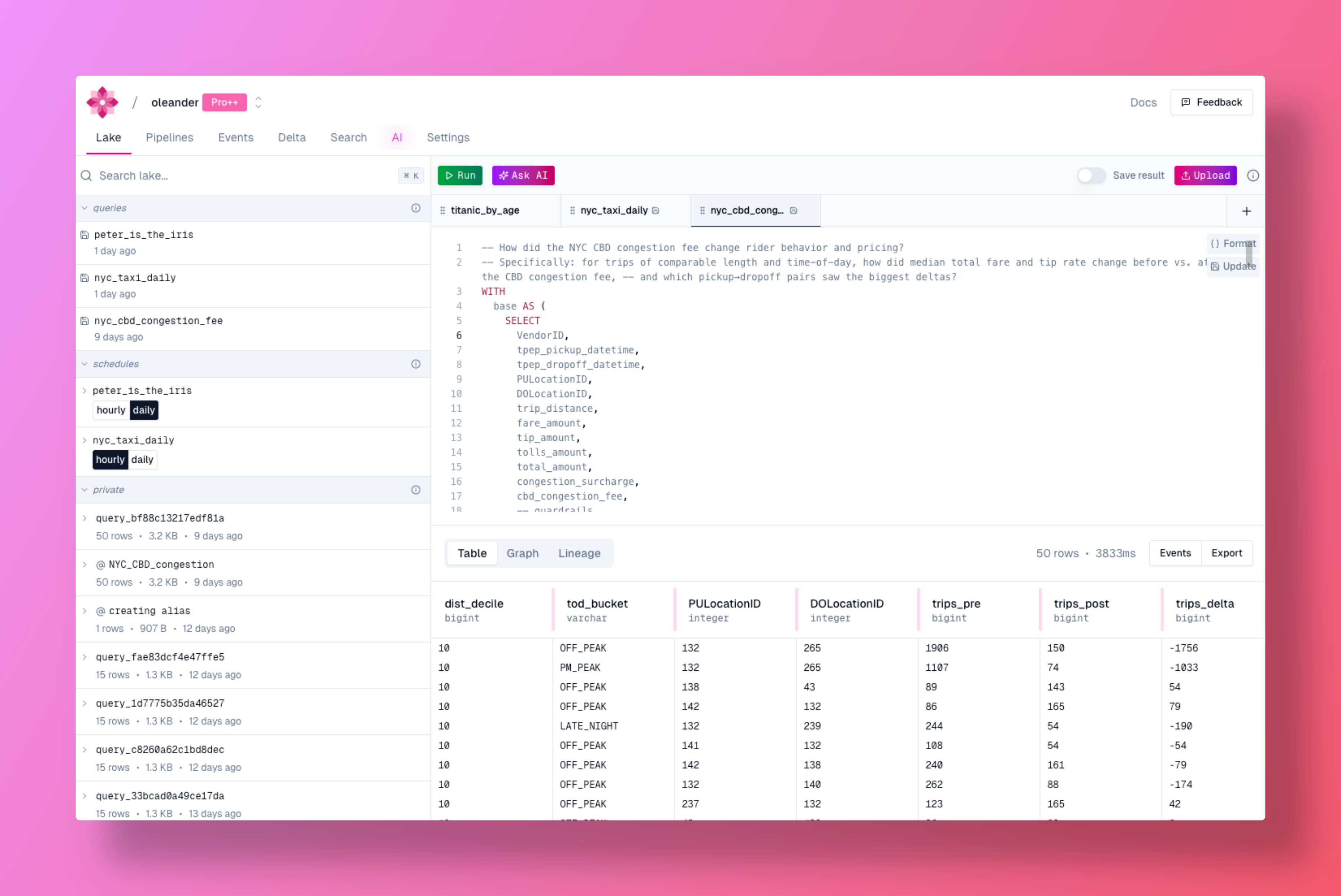
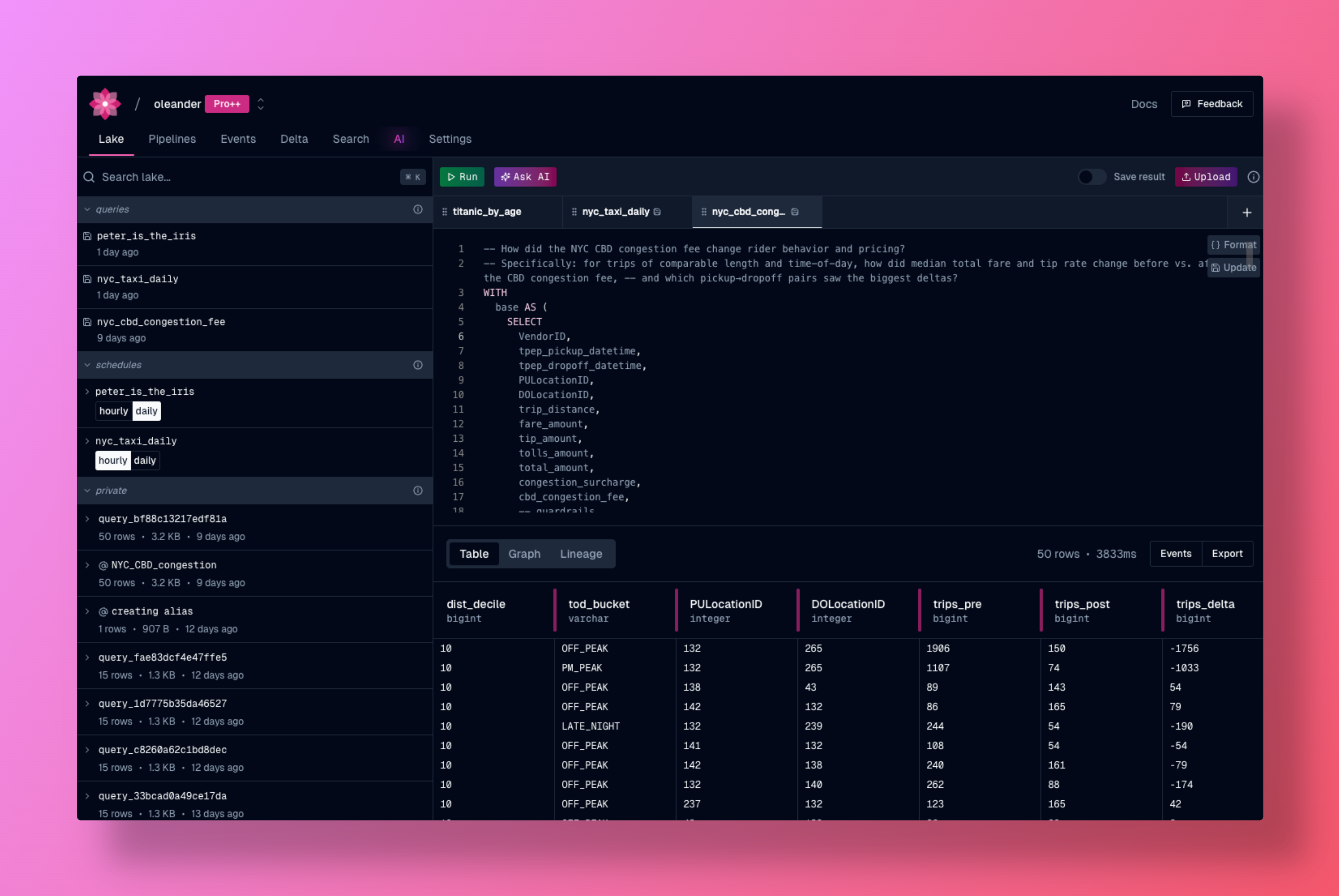
oleander's lake provides a powerful environment for data analysis, collaboration, and discovery. Execute SQL queries, manage your tables, and contribute to the community with automatic lineage tracking and observability built-in. We use [DuckDB](https://duckdb.org/) as the query engine.
Every organization is automatically provisioned a private **Apache Iceberg** catalog named `oleander`. It has two namespaces: `default` for your own tables and `telemetry` for platform events (run events, traces, logs). It is cross-compatible with Spark, DuckDB, and any other Iceberg-aware tool. See [Catalogs](/platform/lake/catalogs) for the full schema.
You can also [connect BigQuery projects](#bigquery-connections) to query them alongside your lake data, [bring your own compute](#bring-your-own-compute) to connect from a local DuckDB or PySpark session, or [register an external Iceberg catalog](#bring-your-own-iceberg-catalog) to query your existing S3 Tables data.
### Portable
The lake is portable and can be used with any [DuckDB](https://duckdb.org/) environment. This means you can run queries, import and export data, and leverage all the features of oleander's lake wherever DuckDB is supported, including on your local machine, in cloud environments, or as part of larger data workflows.
For full lineage coverage, always use the oleander lake API or platform (not a direct DuckDB connection) for queries. API usage ensures all operations are tracked and observable through the lake interface.
Direct DuckDB connections are supported for power users; however, operations performed outside the API will not be traceable in lineage or workflows.
### Automatic lineage
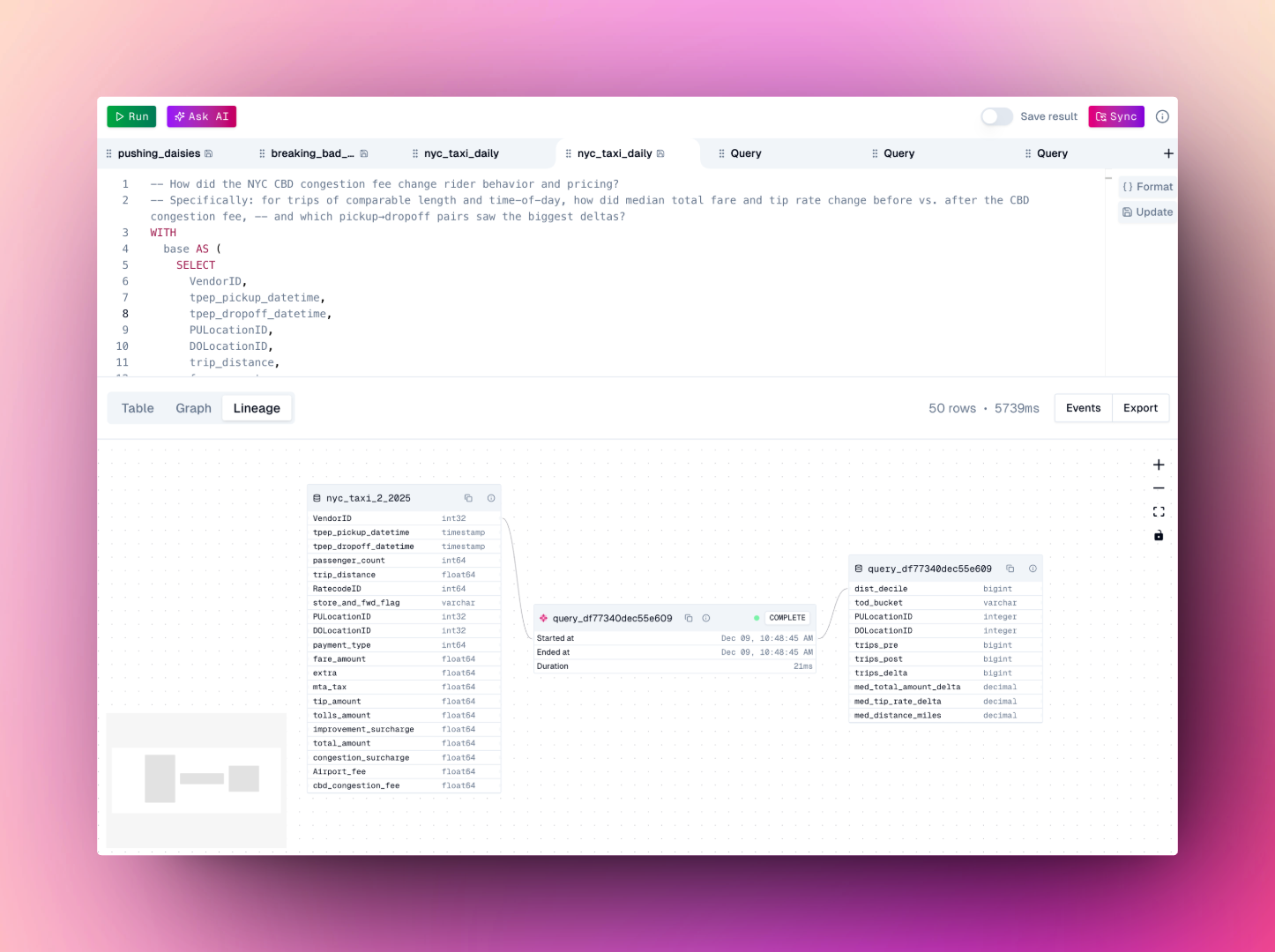
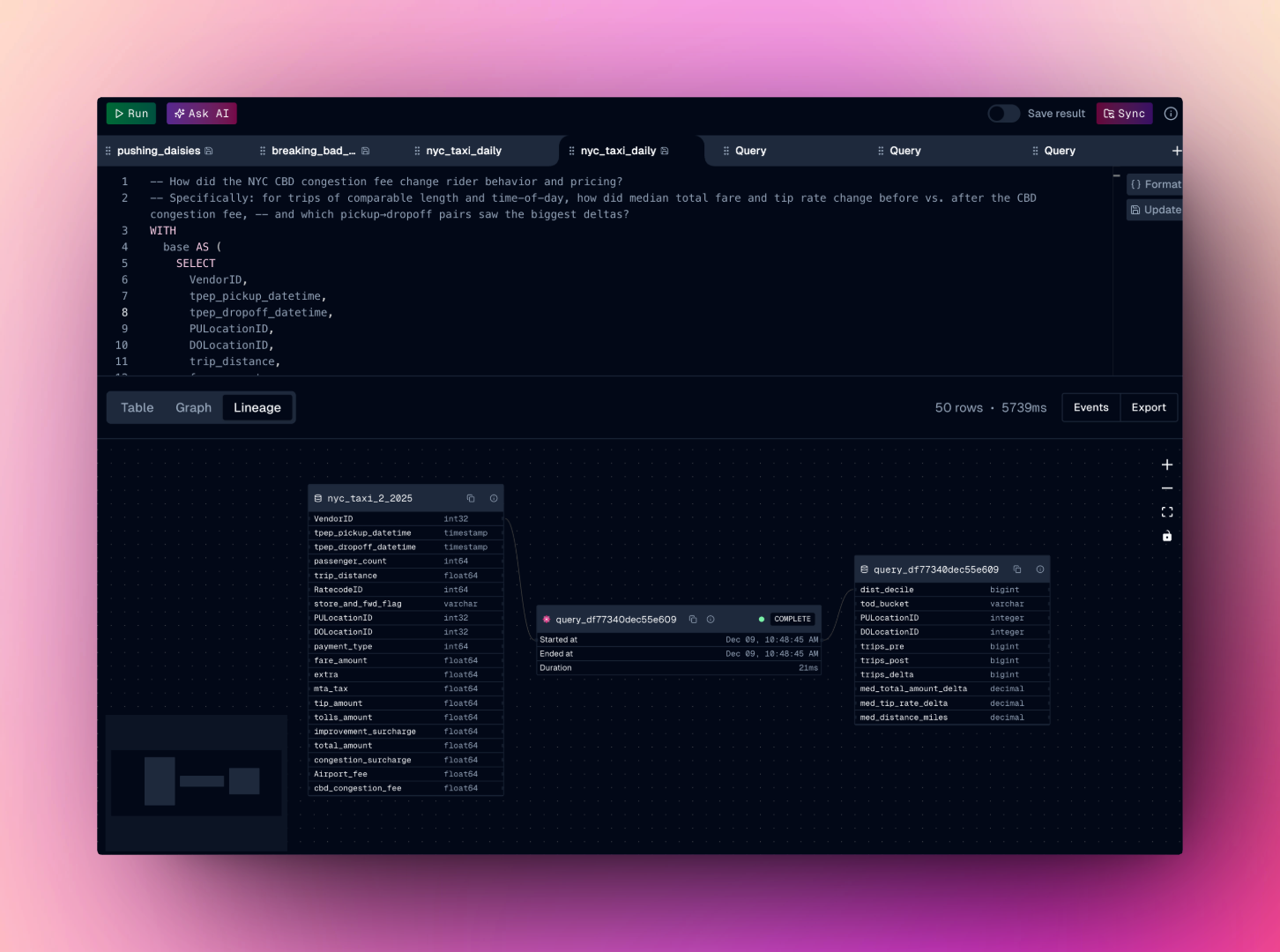
Every operation in oleander automatically captures lineage metadata using the OpenLineage specification. No manual configuration id required.
## Overview
oleander's lake provides a powerful environment for data analysis, collaboration, and discovery. Execute SQL queries, manage your tables, and contribute to the community with automatic lineage tracking and observability built-in. We use [DuckDB](https://duckdb.org/) as the query engine.
Every organization is automatically provisioned a private **Apache Iceberg** catalog named `oleander`. It has two namespaces: `default` for your own tables and `telemetry` for platform events (run events, traces, logs). It is cross-compatible with Spark, DuckDB, and any other Iceberg-aware tool. See [Catalogs](/platform/lake/catalogs) for the full schema.
You can also [connect BigQuery projects](#bigquery-connections) to query them alongside your lake data, [bring your own compute](#bring-your-own-compute) to connect from a local DuckDB or PySpark session, or [register an external Iceberg catalog](#bring-your-own-iceberg-catalog) to query your existing S3 Tables data.
### Portable
The lake is portable and can be used with any [DuckDB](https://duckdb.org/) environment. This means you can run queries, import and export data, and leverage all the features of oleander's lake wherever DuckDB is supported, including on your local machine, in cloud environments, or as part of larger data workflows.
For full lineage coverage, always use the oleander lake API or platform (not a direct DuckDB connection) for queries. API usage ensures all operations are tracked and observable through the lake interface.
Direct DuckDB connections are supported for power users; however, operations performed outside the API will not be traceable in lineage or workflows.
### Automatic lineage
Every operation in oleander automatically captures lineage metadata using the OpenLineage specification. No manual configuration id required.
 ### Serverless SQL execution
Run SQL queries directly in oleander's lake environment. Whether you're analyzing your own data or exploring public tables, the SQL interface provides:
* **Fast Query Execution** - Execute queries with optimized performance
* **Interactive Results** - View and export query results instantly
* **Query History** - Access your past queries and results
* **Automatic Lineage** - Every query automatically captures lineage metadata
### Sync your data
There are several ways to sync your own data into oleander's lake:
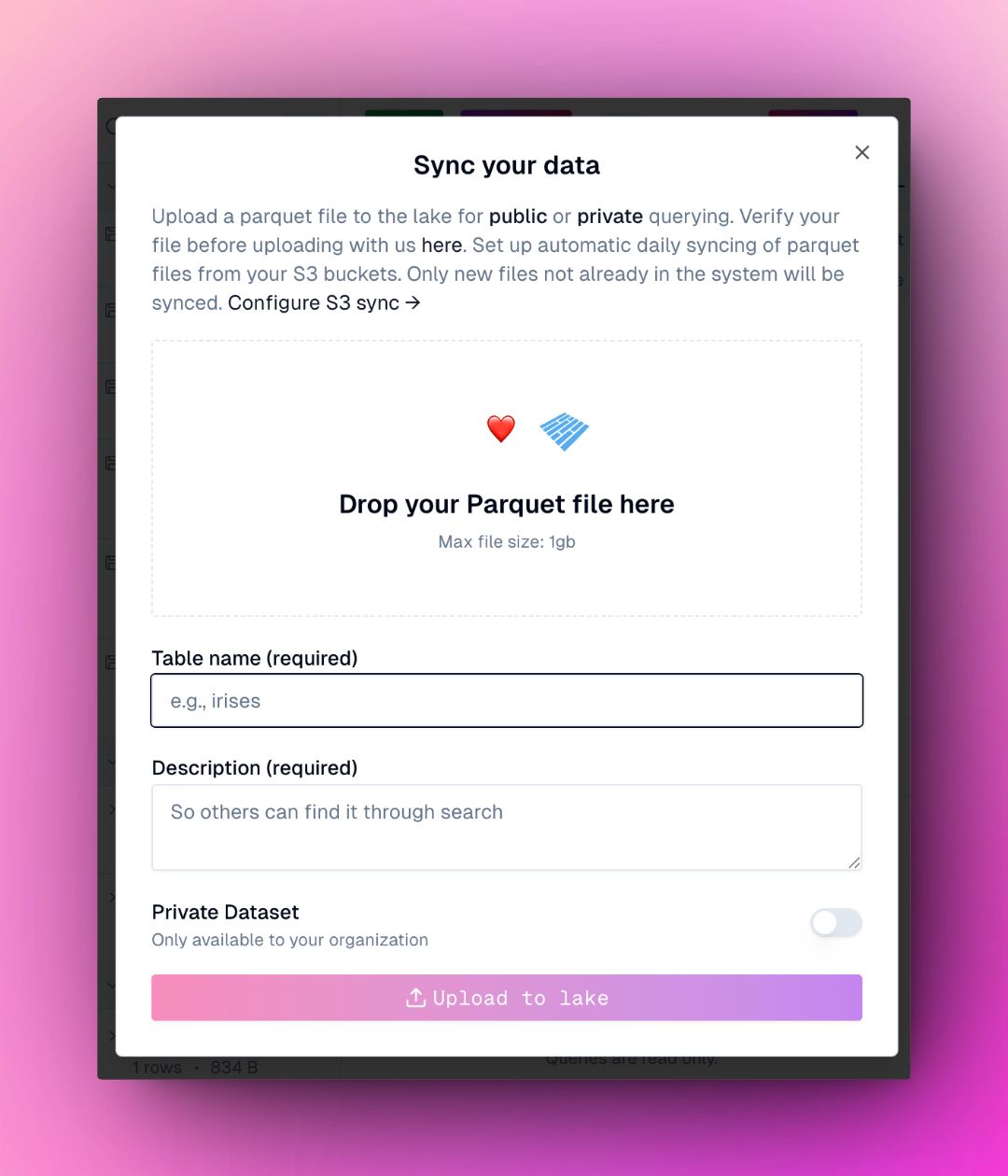
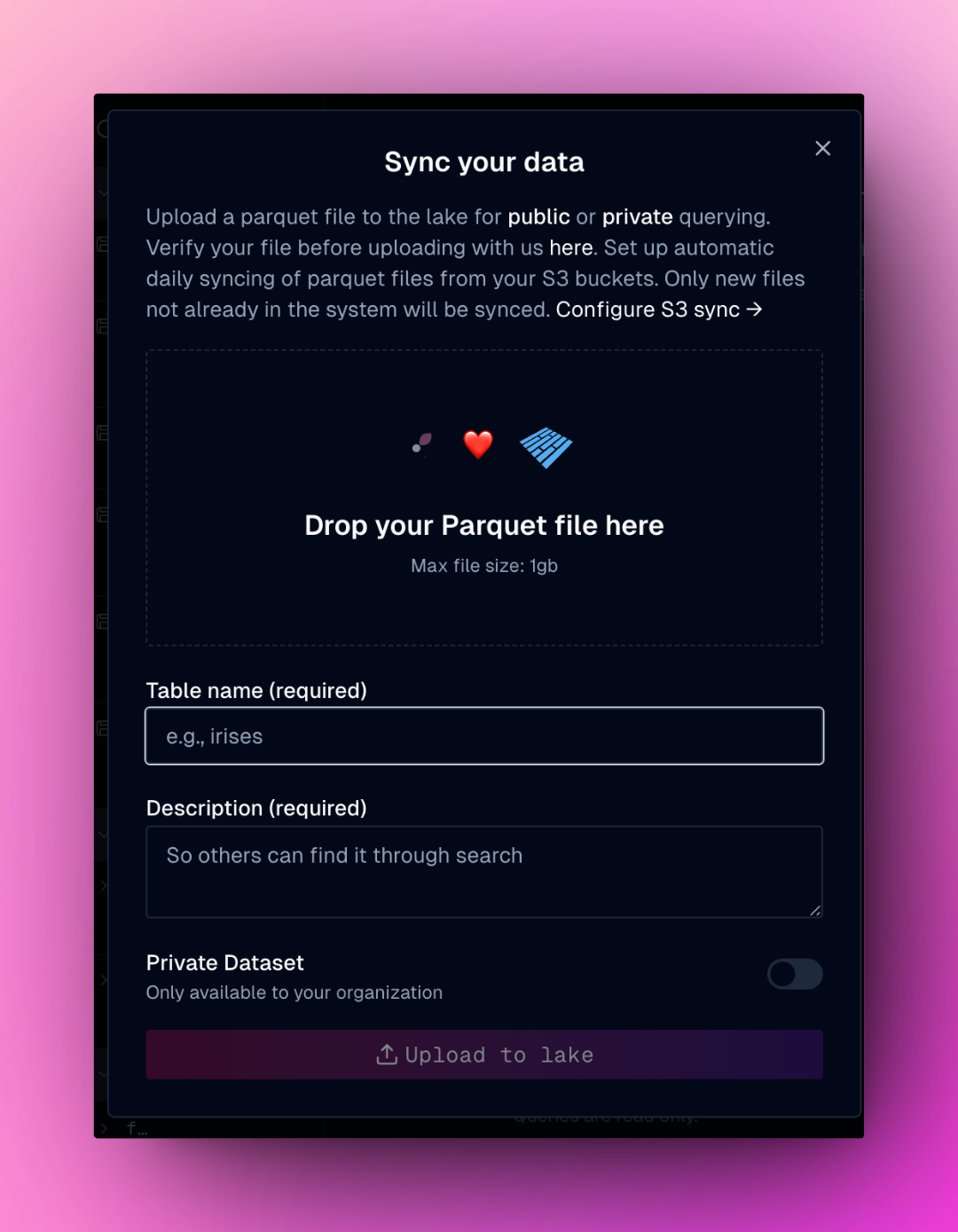
Use the dialog to sync parquet files directly into your lake
### Serverless SQL execution
Run SQL queries directly in oleander's lake environment. Whether you're analyzing your own data or exploring public tables, the SQL interface provides:
* **Fast Query Execution** - Execute queries with optimized performance
* **Interactive Results** - View and export query results instantly
* **Query History** - Access your past queries and results
* **Automatic Lineage** - Every query automatically captures lineage metadata
### Sync your data
There are several ways to sync your own data into oleander's lake:
Use the dialog to sync parquet files directly into your lake
 Connect to your lake and run any DuckDB import operation to load data from various sources
```sql theme={null}
-- Insert flower data from a garden API
INSERT INTO oleander.default.flowers
SELECT
flower_data->>'name' AS name,
flower_data->>'species' AS species,
flower_data->>'color' AS color,
(flower_data->>'evergreen')::BOOLEAN AS evergreen,
(flower_data->>'petals')::INTEGER AS petals,
flower_data->>'notes' AS notes
FROM read_json('https://api.garden.example.com/flowers', format='newline_delimited');
```
Run `CREATE TABLE` statements to define and populate tables with your data
```sql theme={null}
CREATE TABLE oleander.default.flowers AS
SELECT
'oleander' AS name,
'nerium' AS species,
'pink' AS color,
TRUE AS evergreen,
5 AS petals,
'toxic but beautiful' AS notes;
```
Use API-based queries to pull data from external sources directly into your lake (see example below)
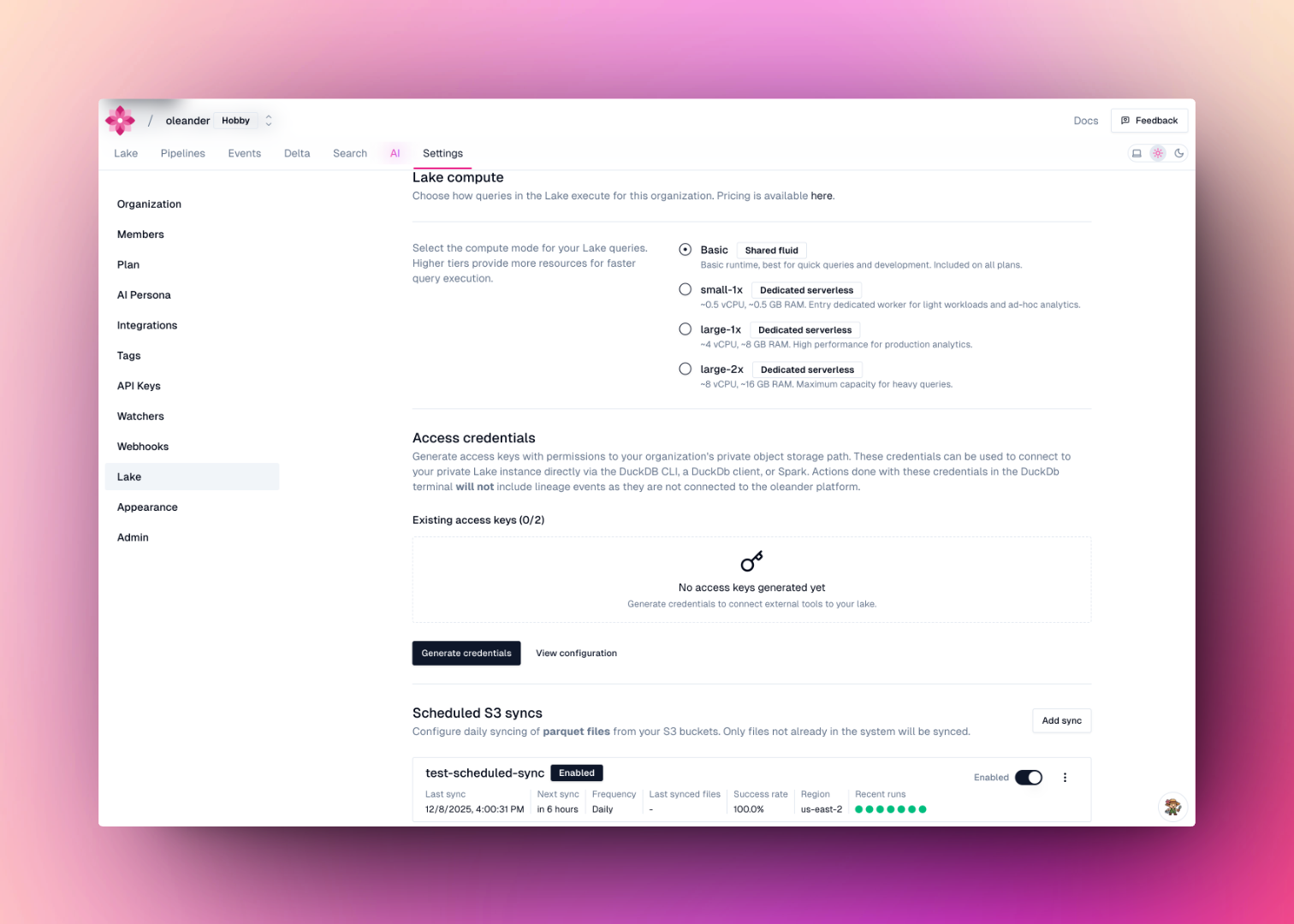
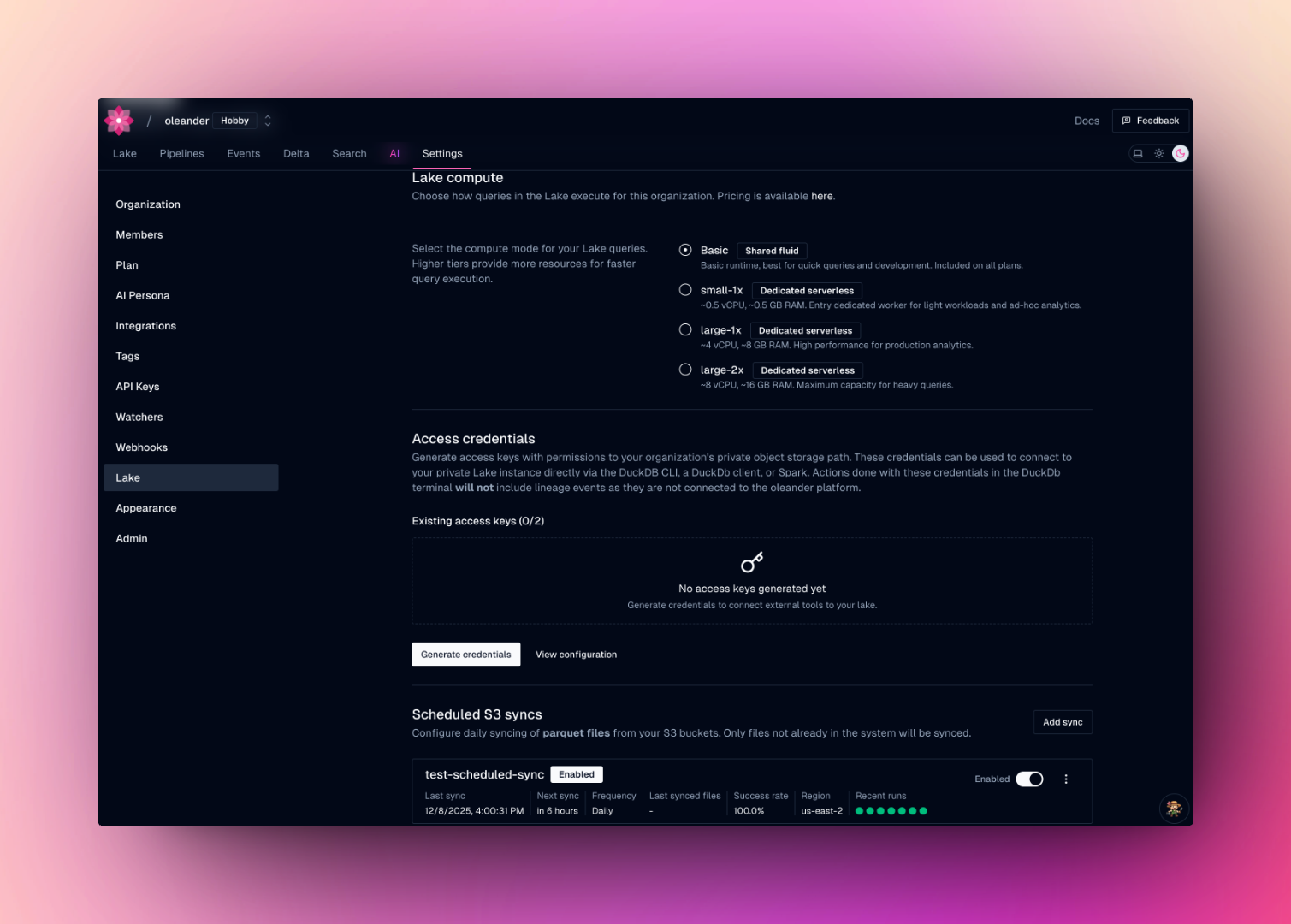
Configure a daily sync of parquet files from your S3 bucket into `oleander.default`. Navigate to [lake settings](https://oleander.dev/app/settings/lake) and add a sync under **Scheduled S3 syncs**. Provide your AWS credentials, bucket name, region, and optional prefix. Only files whose names don't already exist as tables will be synced on each run.
Connect to your lake and run any DuckDB import operation to load data from various sources
```sql theme={null}
-- Insert flower data from a garden API
INSERT INTO oleander.default.flowers
SELECT
flower_data->>'name' AS name,
flower_data->>'species' AS species,
flower_data->>'color' AS color,
(flower_data->>'evergreen')::BOOLEAN AS evergreen,
(flower_data->>'petals')::INTEGER AS petals,
flower_data->>'notes' AS notes
FROM read_json('https://api.garden.example.com/flowers', format='newline_delimited');
```
Run `CREATE TABLE` statements to define and populate tables with your data
```sql theme={null}
CREATE TABLE oleander.default.flowers AS
SELECT
'oleander' AS name,
'nerium' AS species,
'pink' AS color,
TRUE AS evergreen,
5 AS petals,
'toxic but beautiful' AS notes;
```
Use API-based queries to pull data from external sources directly into your lake (see example below)
Configure a daily sync of parquet files from your S3 bucket into `oleander.default`. Navigate to [lake settings](https://oleander.dev/app/settings/lake) and add a sync under **Scheduled S3 syncs**. Provide your AWS credentials, bucket name, region, and optional prefix. Only files whose names don't already exist as tables will be synced on each run.
 ### Scheduled queries with time-travel
Schedule queries to run automatically at specified intervals with time-travel capabilities. Time-travel queries allow you to write queries that reference specific versions or timestamps of your data, ensuring reproducibility and enabling historical analysis without needing to maintain separate historical copies of your data.
Please note that these do incur additional storage as each version is kept to preserve time-traveling capabilities.
```sql theme={null}
SELECT *
FROM oleander.default.sch_nyc_taxi_daily
AT (TIMESTAMP => now() - INTERVAL '24 HOURS');
```
### BigQuery connections
Connect your Google Cloud BigQuery projects so you can query them directly in the lake alongside your Iceberg data. Navigate to [lake settings](https://oleander.dev/app/settings/lake) and add a connection under **BigQuery connections**. Paste your service account JSON; the GCP project ID is filled in automatically.
Once connected, BigQuery tables are available in any DuckDB query as `connection_name.dataset.table`:
```sql theme={null}
-- Query a BigQuery table directly
SELECT *
FROM my_bq_connection.analytics.events
WHERE _PARTITIONDATE = '2024-01-01'
LIMIT 100;
-- Join BigQuery data with your Iceberg tables
SELECT e.user_id, u.plan
FROM my_bq_connection.analytics.events e
JOIN oleander.default.users u ON e.user_id = u.id
WHERE e.event_type = 'signup';
```
The service account key is stored encrypted and is never returned to the browser after saving.
### Bring your own (Iceberg) catalog
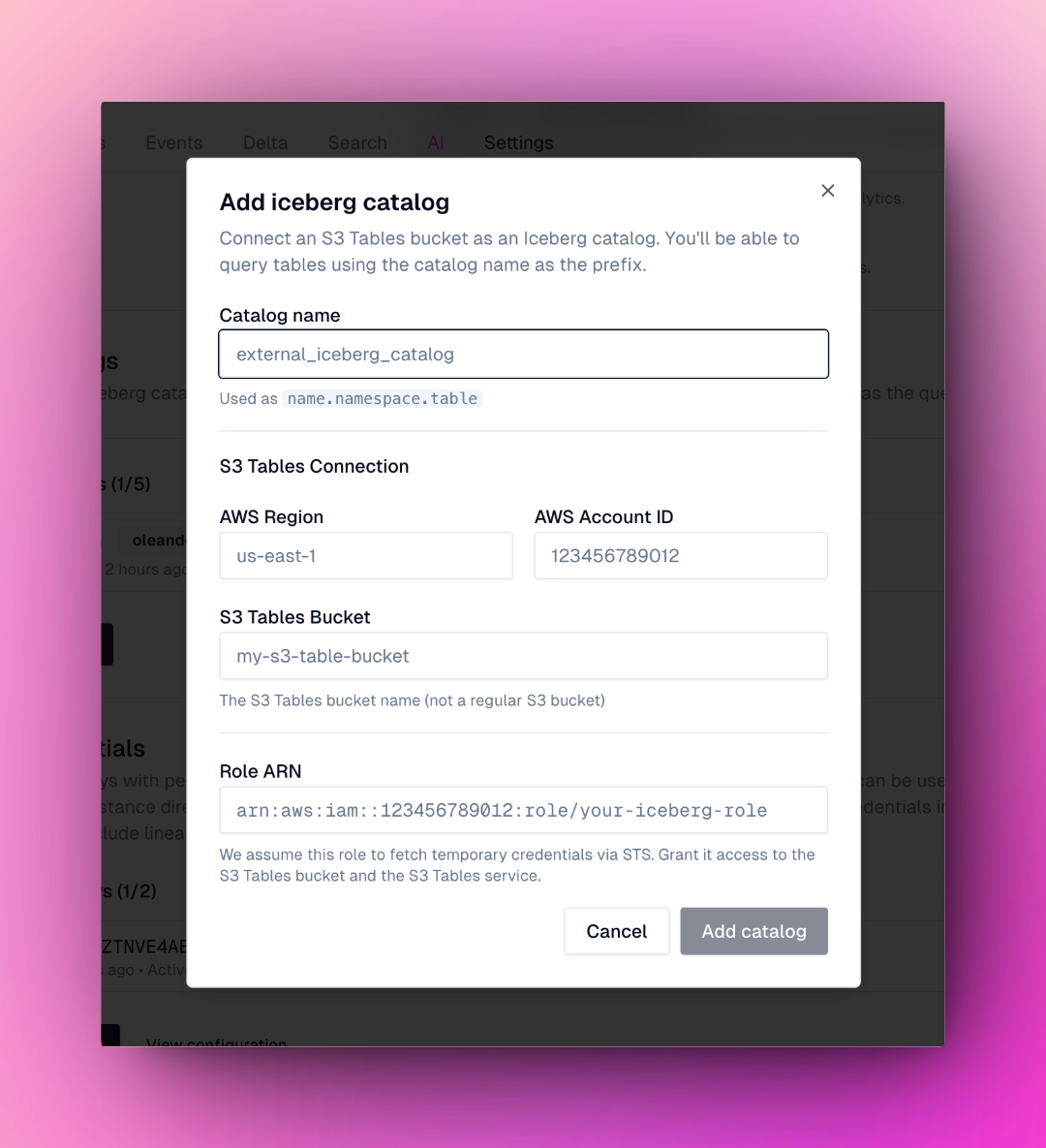
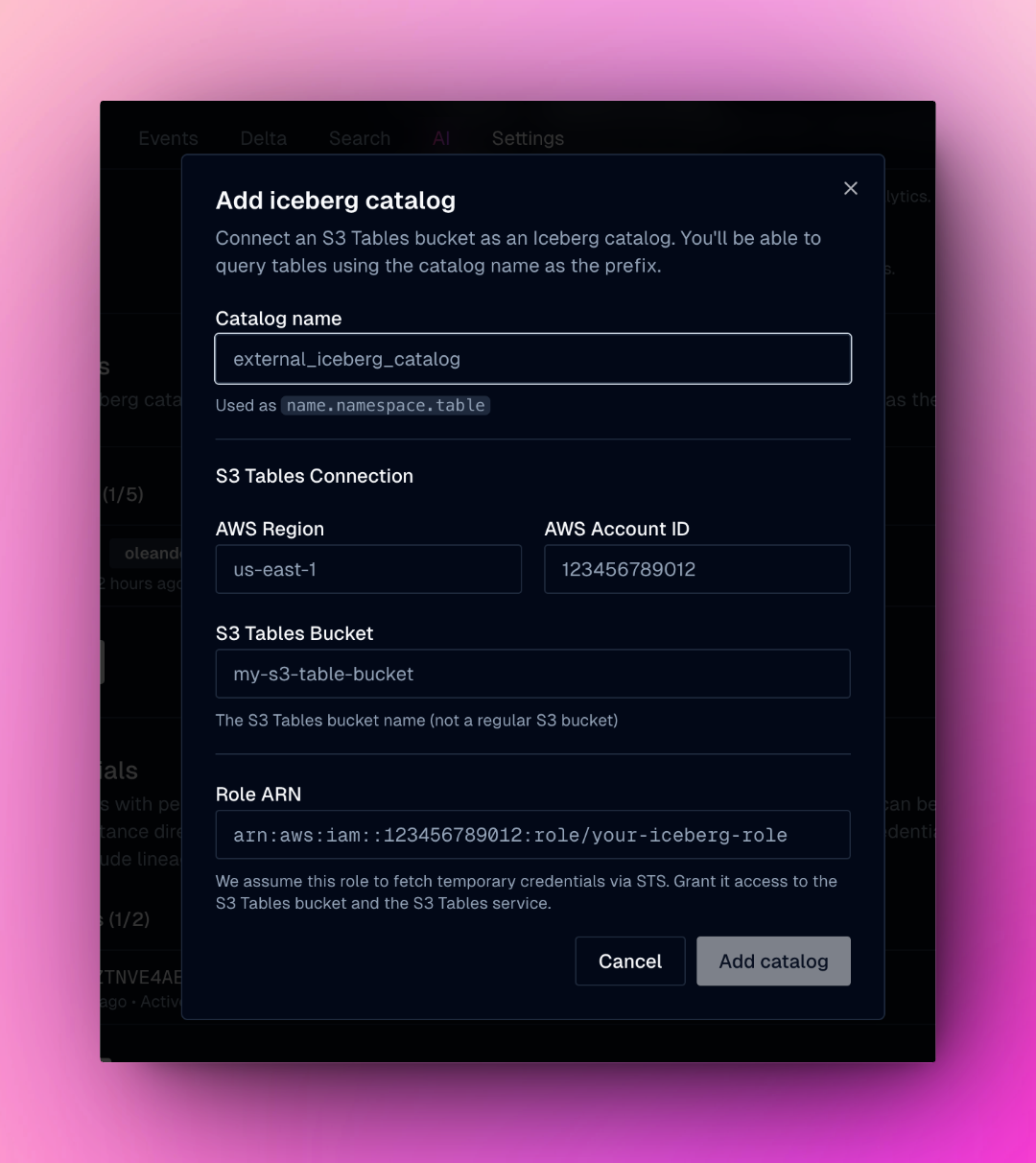
We support adding Iceberg via [S3 table buckets](https://us-east-1.console.aws.amazon.com/s3/table-buckets). This lets you use your existing Iceberg catalog within the oleander lake and consume the oleander compute layer.
This allows the oleander aws account to generate temporary credentials to access your catalog.
Create a role that has access to S3Tables. You can scope this down to specific tables.
```json theme={null}
{
"Version": "2012-10-17",
"Statement": [
{
"Effect": "Allow",
"Action": [
"s3tables:*"
],
"Resource": "*"
},
{
"Sid": "PassRoleToS3TablesReplication",
"Effect": "Allow",
"Action": [
"iam:PassRole"
],
"Resource": "*",
"Condition": {
"StringEquals": {
"iam:PassedToService": [
"replication.s3tables.amazonaws.com"
]
}
}
}
]
}
```
Configure the trust relationship for an your IAM role with the following policy:
```json theme={null}
{
"Version": "2012-10-17",
"Statement": [
{
"Effect": "Allow",
"Principal": {
"AWS": "arn:aws:iam::579897423473:role/oleander-job-execution-role-dev"
},
"Action": "sts:AssumeRole"
}
]
}
```
Navigate to the [lake settings](https://oleander.dev/app/lake/settings) and your aws account ID, role ARN, and bucket name. Next your catalog should be available listed on the lake page.
### Scheduled queries with time-travel
Schedule queries to run automatically at specified intervals with time-travel capabilities. Time-travel queries allow you to write queries that reference specific versions or timestamps of your data, ensuring reproducibility and enabling historical analysis without needing to maintain separate historical copies of your data.
Please note that these do incur additional storage as each version is kept to preserve time-traveling capabilities.
```sql theme={null}
SELECT *
FROM oleander.default.sch_nyc_taxi_daily
AT (TIMESTAMP => now() - INTERVAL '24 HOURS');
```
### BigQuery connections
Connect your Google Cloud BigQuery projects so you can query them directly in the lake alongside your Iceberg data. Navigate to [lake settings](https://oleander.dev/app/settings/lake) and add a connection under **BigQuery connections**. Paste your service account JSON; the GCP project ID is filled in automatically.
Once connected, BigQuery tables are available in any DuckDB query as `connection_name.dataset.table`:
```sql theme={null}
-- Query a BigQuery table directly
SELECT *
FROM my_bq_connection.analytics.events
WHERE _PARTITIONDATE = '2024-01-01'
LIMIT 100;
-- Join BigQuery data with your Iceberg tables
SELECT e.user_id, u.plan
FROM my_bq_connection.analytics.events e
JOIN oleander.default.users u ON e.user_id = u.id
WHERE e.event_type = 'signup';
```
The service account key is stored encrypted and is never returned to the browser after saving.
### Bring your own (Iceberg) catalog
We support adding Iceberg via [S3 table buckets](https://us-east-1.console.aws.amazon.com/s3/table-buckets). This lets you use your existing Iceberg catalog within the oleander lake and consume the oleander compute layer.
This allows the oleander aws account to generate temporary credentials to access your catalog.
Create a role that has access to S3Tables. You can scope this down to specific tables.
```json theme={null}
{
"Version": "2012-10-17",
"Statement": [
{
"Effect": "Allow",
"Action": [
"s3tables:*"
],
"Resource": "*"
},
{
"Sid": "PassRoleToS3TablesReplication",
"Effect": "Allow",
"Action": [
"iam:PassRole"
],
"Resource": "*",
"Condition": {
"StringEquals": {
"iam:PassedToService": [
"replication.s3tables.amazonaws.com"
]
}
}
}
]
}
```
Configure the trust relationship for an your IAM role with the following policy:
```json theme={null}
{
"Version": "2012-10-17",
"Statement": [
{
"Effect": "Allow",
"Principal": {
"AWS": "arn:aws:iam::579897423473:role/oleander-job-execution-role-dev"
},
"Action": "sts:AssumeRole"
}
]
}
```
Navigate to the [lake settings](https://oleander.dev/app/lake/settings) and your aws account ID, role ARN, and bucket name. Next your catalog should be available listed on the lake page.
 ### Bring your own compute
Connect to your oleander lake from any DuckDB terminal, PySpark application, or client library. You can easily connect to your lake in our settings [here](https://oleander.dev/app/settings/lake).
#### DuckDB terminal
Use the oleander CLI to launch a connected DuckDB session:
```bash theme={null}
oleander duckdb
```
```sql theme={null}
-- Query your data
SELECT * FROM oleander.default.flowers LIMIT 10;
```
## Getting started
Get started with oleander's lake in just a few steps:
1. **Navigate to the Lake** in your oleander dashboard to access the SQL interface
2. **Run a SQL query** on a public table to get familiar with the interface:
```sql theme={null}
SELECT * FROM oleander.default.iris_dataset LIMIT 10;
```
3. **Sync your own data** to start analyzing your tables. Create a new table with sample data:
```sql theme={null}
CREATE TABLE oleander.default.flowers AS
SELECT
'oleander' AS name,
'nerium' AS species,
'pink' AS color,
TRUE AS evergreen,
5 AS petals,
'toxic but beautiful' AS notes;
```
Follow up with an insertion if you'd like as well:
```sql theme={null}
INSERT INTO oleander.default.flowers (name, species, color, evergreen, petals, notes)
VALUES (
'camellia',
'camellia japonica',
'white',
TRUE,
8,
'winter-blooming, glossy leaves'
);
```
4. **Explore lineage** to see how data flows through your queries. Every operation automatically captures lineage metadata for complete observability.
The lake provides a complete environment for data analysis, from quick SQL queries to complex Spark jobs, all with observability built in.
## FAQs
Clock time and query time can differ for several reasons:
* **Clock time** measures the total wall-clock time from when a query is submitted until it comes back to you. This also includes lineage extraction and creation.
* **Query time** measures the actual execution time spent processing the query in the database engine running your query.
The difference typically occurs due to:
* Network latency
* Lineage extraction
You only pay for the query time.
Direct DuckDB connections bypass the oleander API layer, which is responsible for capturing and instrumenting lineage metadata. When you connect directly to DuckDB, your queries execute directly against the database engine without going through oleander's observability infrastructure.
To capture lineage:
* Use the oleander lake API or platform for queries
* All operations performed through the API are automatically tracked and observable
* Lineage metadata is captured using the OpenLineage specification
Direct DuckDB connections are supported for power users who need direct database access, but they operate outside the observability layer. If you need lineage tracking for your queries, use the oleander API instead of a direct connection.
### Bring your own compute
Connect to your oleander lake from any DuckDB terminal, PySpark application, or client library. You can easily connect to your lake in our settings [here](https://oleander.dev/app/settings/lake).
#### DuckDB terminal
Use the oleander CLI to launch a connected DuckDB session:
```bash theme={null}
oleander duckdb
```
```sql theme={null}
-- Query your data
SELECT * FROM oleander.default.flowers LIMIT 10;
```
## Getting started
Get started with oleander's lake in just a few steps:
1. **Navigate to the Lake** in your oleander dashboard to access the SQL interface
2. **Run a SQL query** on a public table to get familiar with the interface:
```sql theme={null}
SELECT * FROM oleander.default.iris_dataset LIMIT 10;
```
3. **Sync your own data** to start analyzing your tables. Create a new table with sample data:
```sql theme={null}
CREATE TABLE oleander.default.flowers AS
SELECT
'oleander' AS name,
'nerium' AS species,
'pink' AS color,
TRUE AS evergreen,
5 AS petals,
'toxic but beautiful' AS notes;
```
Follow up with an insertion if you'd like as well:
```sql theme={null}
INSERT INTO oleander.default.flowers (name, species, color, evergreen, petals, notes)
VALUES (
'camellia',
'camellia japonica',
'white',
TRUE,
8,
'winter-blooming, glossy leaves'
);
```
4. **Explore lineage** to see how data flows through your queries. Every operation automatically captures lineage metadata for complete observability.
The lake provides a complete environment for data analysis, from quick SQL queries to complex Spark jobs, all with observability built in.
## FAQs
Clock time and query time can differ for several reasons:
* **Clock time** measures the total wall-clock time from when a query is submitted until it comes back to you. This also includes lineage extraction and creation.
* **Query time** measures the actual execution time spent processing the query in the database engine running your query.
The difference typically occurs due to:
* Network latency
* Lineage extraction
You only pay for the query time.
Direct DuckDB connections bypass the oleander API layer, which is responsible for capturing and instrumenting lineage metadata. When you connect directly to DuckDB, your queries execute directly against the database engine without going through oleander's observability infrastructure.
To capture lineage:
* Use the oleander lake API or platform for queries
* All operations performed through the API are automatically tracked and observable
* Lineage metadata is captured using the OpenLineage specification
Direct DuckDB connections are supported for power users who need direct database access, but they operate outside the observability layer. If you need lineage tracking for your queries, use the oleander API instead of a direct connection.